Lubuntu for Banana Pi
Summary
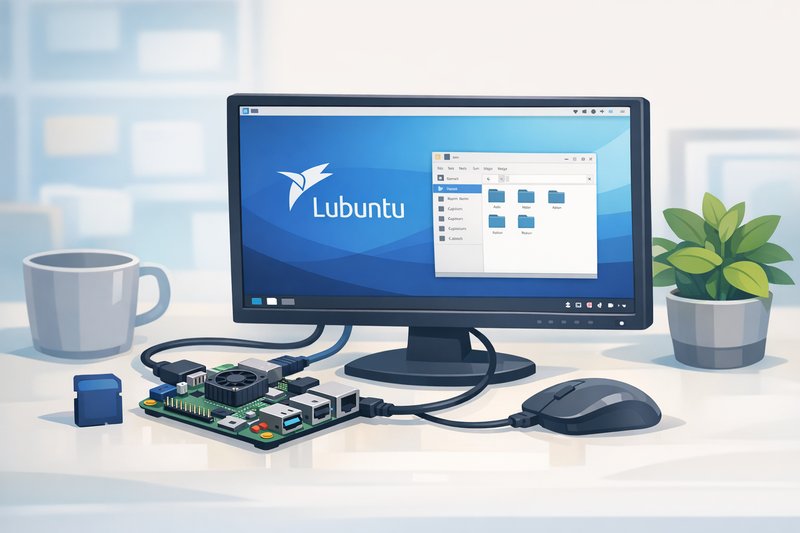
Lubuntu provides a lightweight LXDE/LXQt desktop environment optimized for ARM single-board computers with limited resources. This guide covers image selection and verification, first boot procedures, desktop configuration, safe system updates, performance optimization, and comprehensive troubleshooting for Lubuntu on Banana Pi-class hardware. Stability depends on storage quality and careful updates'especially when graphics drivers or desktop components change.
Who this is for
Users seeking a full desktop environment on Banana Pi with lower resource usage than GNOME or KDE, educators deploying SBCs for classroom computing, hobbyists building desktop projects, and developers needing a lightweight GUI for ARM development and testing.
What you'll do
- Download and verify Lubuntu ARM image integrity before flashing.
- Flash to SD card and complete first boot with HDMI display and peripherals.
- Configure desktop environment, network connectivity, and user accounts.
- Update system packages safely without breaking graphics drivers.
- Optimize performance for smooth desktop experience on limited hardware.
- Troubleshoot display issues, WiFi connectivity, and performance problems.
Requirements
- Power: 5V 2A minimum (2.5-3A recommended for Banana Pi/Pro with peripherals)
- Storage: Known-good SD card (Class 10 or UHS-I, 8GB minimum, 16GB+ recommended)
- Display: HDMI monitor and cable
- Input: USB keyboard and mouse
- Network: Ethernet recommended for first boot and updates (WiFi configurable after)
- Cooling: Heatsink or case with ventilation recommended for desktop use
Download and flash procedure
Download Options for Banana Pi/Pro
?? Legacy Lubuntu Status
Original Version: v1412 (2014-12-26) - No longer maintained
Status: The Lubuntu community no longer provides board-specific images for Banana Pi
The original LeMaker Lubuntu images are archived but outdated. For a modern, supported OS with similar functionality, see the recommended alternative below.
? Recommended: Armbian (Modern Replacement)
Status: Actively maintained (latest build: 20 Jan 2026)
Board support: Banana Pi M1+ (Banana Pro)
Available editions: Desktop (XFCE/LXQt) and Server/Minimal
Base systems: Debian 12 (Bookworm), Ubuntu 24.04 (Noble)
Download options:
- Armbian for Banana Pi M1+ (Official) - Desktop images (~1.1 GB), Server images (~230-420 MB)
- LeMaker Mirror (Legacy Archives)
Flash procedure
- Download Lubuntu image: Get ARM-specific Lubuntu for your board from the links above or downloads hub. Verify board compatibility (Banana Pi vs Pro vs M variants).
- Verify integrity:
sha256sum lubuntu-banana-pi.img.xz # Compare with published checksum - Flash to SD card:
# Linux: xz -d lubuntu-banana-pi.img.xz sudo dd if=lubuntu-banana-pi.img of=/dev/sdX bs=4M status=progress conv=fsync sync # Windows: use Balena Etcher or Rufus # macOS: use Balena Etcher or dd (similar to Linux) - First boot: Insert SD card, connect HDMI/keyboard/mouse/Ethernet, power on. First boot takes 2-3 minutes for filesystem expansion and initial setup.
Initial configuration
User account setup
Default credentials vary by image. Common defaults:
- Username:
pi,bananapi, orlubuntu - Password:
bananapi,pi, or shown on first boot screen
Change password immediately:
passwd
# Enter current password, then new password twice
Network configuration
Ethernet via DHCP should work automatically. For WiFi:
# GUI: Click network icon in system tray ? WiFi Networks ? select SSID ? enter password

# Command line:
sudo nmcli dev wifi list
sudo nmcli dev wifi connect "YourSSID" password "YourPassword"

# Verify:
ip a
ping -c4 1.1.1.1
Display resolution adjustment
# Check current resolution and available modes:
xrandr

# Set specific resolution:
xrandr --output HDMI-1 --mode 1920x1080

# Make permanent: LXQt Settings ? Monitor Settings ? select resolution ? Apply
System update procedure (critical)
Warning: Desktop updates can break graphics drivers on ARM. Follow this safe procedure:
- Document current state:
dpkg -l | grep -E "xserver|mesa|mali" > ~/graphics-before.txt uname -a > ~/kernel-before.txt - Update in supervised session:
sudo apt update sudo apt full-upgrade # Review package list carefully - note kernel/graphics changes # Consider deferring large updates (new kernel version) if system currently stable - Reboot and verify:
sudo reboot # After reboot: test desktop loads, display correct, network works, peripherals respond - If update breaks desktop: Boot to text console (Ctrl+Alt+F2), login, check logs:
journalctl -xe | tail -50
systemctl status lightdm  # or sddm
# Downgrade problematic package or restore from backup image
Performance optimization
- Disable startup apps: LXQt Settings ? Session Settings ? Autostart ? disable unused services
- Reduce visual effects: LXQt Settings ? Desktop ? disable animations and transparency
- Lightweight applications: PCManFM (files), LXTerminal (terminal), Midori/Falkon (browser)
- Increase swap:
sudo dphys-swapfile swapoff sudo nano /etc/dphys-swapfile # Set CONF_SWAPSIZE=1024 (1GB) sudo dphys-swapfile setup sudo dphys-swapfile swapon - Check CPU governor:
cat /sys/devices/system/cpu/cpu0/cpufreq/scaling_governor
# Should be "ondemand" or "performance" for desktop
Troubleshooting
- No desktop (black screen): Try different HDMI cable/monitor; check
dmesg | grep -i drm; verify power supply adequate; check display manager:systemctl status lightdm; try force resolution in/boot/boot.cmdor kernel cmdline. - Desktop freezes: Check temperature:
cat /sys/class/thermal/thermal_zone0/temp(>70000 = overheating); verify PSU (weak power causes freezes); check SD card:dmesg | grep -i mmcfor errors; add cooling. - After update no desktop: Boot console (Ctrl+Alt+F2), check
journalctl -xe; reinstall display manager:sudo apt install --reinstall lightdm; downgrade kernel if needed. - WiFi not working: Check interface:
ip link; for USB WiFi, checklsusbanddmesg | tail; install firmware:sudo apt install firmware-realtek firmware-ralink. - Slow/laggy: Monitor CPU:
watch -n1 cat /sys/devices/system/cpu/cpu0/cpufreq/scaling_cur_freq; check for throttling; close heavy apps; use lightweight alternatives. - No audio: Run
alsamixer, unmute (M key); test:speaker-test -c2; for HDMI audio, select in settings; verify user in audio group:groups.
Common mistakes
- Updating without supervision and breaking graphics drivers
- Using inadequate PSU (1A charger) causing freezes
- Running heavy apps (Chromium many tabs) on 1GB RAM without swap
- Ignoring temperature causing thermal throttling
- Not changing default password
FAQ
- LXDE vs LXQt for Banana Pi?
- LXDE (GTK) lighter for 1GB RAM boards. LXQt (Qt) more modern but slightly heavier. Check your image version.
- RAM usage at idle?
- LXDE: ~200-300MB. LXQt: ~300-400MB. Check with
free -h. - Best browser?
- Midori or Falkon work better than Chromium/Firefox on 1GB RAM. Limit tabs.
- Can I upgrade 18.04 to 20.04?
- Not recommended on ARM. Flash fresh 20.04 image, restore data. Saves troubleshooting time.
- VNC remote desktop?
sudo apt install x11vnc, set password:x11vnc -storepasswd, run:x11vnc -usepw -display :0. Connect to port 5900.
External reference
- Ubuntu Blog – community news, tutorials, and tips for Ubuntu and Ubuntu-based distributions including Lubuntu
Related guides
Author: LeMaker Documentation Team
Last updated: 2026-01-20