Arch Linux for Banana Pi
Summary
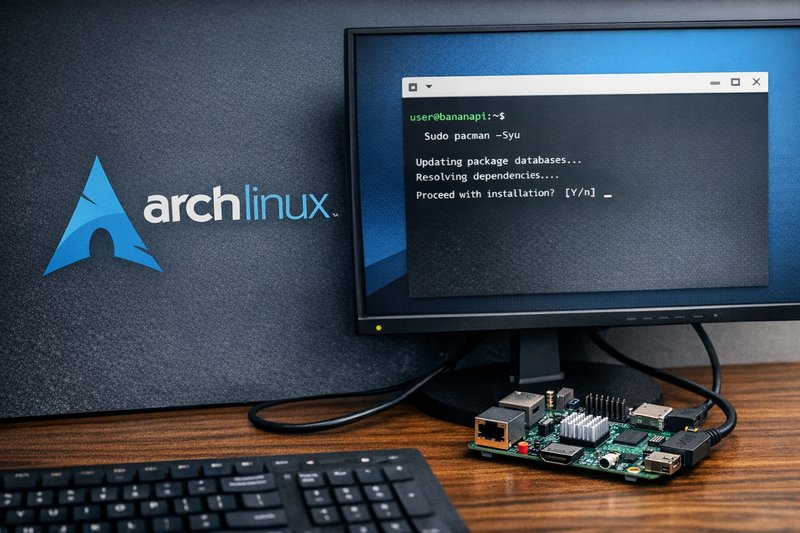
Arch Linux on Banana Pi-class boards rewards patience more than clever shortcuts. The point is simple: get the board into a clean first boot, update it without guesswork, and keep a recovery path open when a reboot changes behaviour.
The usual trap is the one that catches most rolling releases. People update first and think about recovery later. Verify the download, bring the board up on Ethernet if you can, supervise the first update, and make sure console access still works after the restart.
Who this is for
This suits new board owners who want a predictable flash-boot-update sequence, and developers who need a maintenance routine that does not fall apart when the package set shifts. It also makes sense for headless SBCs, where SSH helps but should never be the only route back in.
What you'll do
- Flash an Arch Linux image to reliable storage and boot with as few peripherals as possible.
- Bring up networking over Ethernet first, then check DNS and set the clock.
- Update packages safely with
pacman, then reboot while watching the console. - Lock down basic access with SSH keys and turn off password logins where possible.
- Run a few quick checks so faults show up early, not after the next change.
Quick checklist
- A known-good SD card, or an eMMC module if the board supports it, plus a reliable writer.
- A stable PSU. Undervoltage still causes the same old mess: random resets and odd corruption symptoms.
- An Ethernet cable for first boot if possible, or a known-compatible Wi-Fi dongle.
- A USB'TTL serial adapter at 3.3V if you want recovery access and early boot logs.
- The image file from the LeMaker downloads hub.
- A checksum file, or a published hash, to confirm the download is intact.
- Keyboard and HDMI only if SSH or serial are not part of the setup.
Arch Linux for Banana Pi/Pro - Installation Method
?? No Ready-to-Use Image Available
Official support: Arch Linux ARM officially supports BPI-M1 and BPI-M1+
Distribution method: Root filesystem tarball (manual installation required)
Installation complexity: Advanced - requires U-Boot configuration and manual setup
Installation Requirements
Architecture: ARMv7 hard-float
Release model: Rolling release
Package manager: pacman
Default login: root@root (change immediately after first boot)
Required components:
- Arch Linux ARM root filesystem tarball
- U-Boot bootloader compiled for Banana Pi/Pro
- Partitioned SD card with proper boot configuration
Download and documentation:
- Arch Linux ARM Official Site - Root filesystem downloads
- Arch Linux ARM Wiki - Installation instructions
- LeMaker Mirror (Legacy)
Getting from image to first boot
- Verify the download before flashing. From your workstation:
sha256sum archlinux-image.img.xz
sha256sum archlinux-image.img
Match the output to the published checksum. If the integrity check fails, download it again before moving on.
- Identify the target device and flash carefully. Confirm the device node first:
lsblk
# Example output will show /dev/sdX with the SD card size
Use the flashing method you trust, GUI imager or command line. Reinsert the card and check that the partitions appear as expected.
- Boot with minimal peripherals. Use Ethernet if possible, and keep USB devices to a minimum until the system settles.
- Get access through serial or SSH. With a serial adapter, capture the early boot output. If you are using SSH, confirm that the board has an IP address and that logins are stable.
- Do a supervised first update and reboot. This is where rolling releases most often catch people out, so keep a console open and plan the restart.
Network bring-up tips
- Confirm link and address:
ip a ip r - Confirm DNS:
cat /etc/resolv.conf getent hosts example.com - Confirm time is sane:
timedatectl statusIf the clock is wildly wrong, TLS and package downloads can fail.
Pacman update routine on SBCs
- Refresh and update:
sudo pacman -Syu - If the update touched kernel or boot components, plan a reboot. Keep serial or local console access available.
- Reboot:
sudo reboot - After reboot, verify health: use the checks in the next section.
- Repeat updates intentionally. On headless systems, avoid unattended upgrades until remote recovery has already been proven.
Basic hardening without locking yourself out
- Use SSH keys for admin access. From your workstation, generate a key if you need one, then install it on the board.
- Disable password SSH login once keys work. Edit
/etc/ssh/sshd_configand set:PasswordAuthentication noRestart the service and confirm you can still log in before closing the session. Do not assume it worked.
- Keep a recovery path. If you can, leave serial access available and avoid changing networking and SSH settings in the same session.
Verification checks
Run these after first boot and after any significant update:
uname -a
ip a
systemctl --failed
journalctl -b -p err | tail -n 80
dmesg | tail -n 50
Troubleshooting
- Board boots but no network: try Ethernet first; confirm the interface name with
ip a; checkip rfor a default route. - Package downloads fail: confirm time with
timedatectland DNS withgetent hosts; then retrypacman -Syu. - Random reboots or filesystem errors: treat power and storage as suspects; try a different PSU and a different SD card.
- System is up but SSH is unavailable: confirm
sshdis running; check firewall settings; use serial console to recover. - After update you lose access: boot with serial logging; check
journalctl -b -p errfor errors; revert the last risky change first, usually networking or SSH.
Common mistakes
- Updating without a working recovery console, serial or local access.
- Flashing the wrong target device - always confirm with
lsblkfirst. - Skipping checksum verification and then blaming the board for a corrupt download.
- Trying Wi-Fi on first boot with an unknown dongle instead of using Ethernet.
- Changing SSH settings before confirming key-based login works.
Related guides
Author: LeMaker Documentation Team
Last updated: 2026-01-20