Berryboot
Summary
Berryboot is a multi-boot bootloader for ARM single-board computers, allowing multiple operating systems to coexist on one storage device with a graphical boot menu. While convenient for testing different distributions or dual-booting setups, multi-boot configurations add complexity and potential failure points. This page covers safe Berryboot installation, OS image management, boot menu configuration, and troubleshooting strategies. Most issues stem from insufficient storage space, incompatible kernels between OS images, or filesystem corruption from improper shutdowns.
Who this is for
Users wanting to test multiple distributions without swapping SD cards, educators managing classroom setups with multiple OS options, developers maintaining separate development and production environments on one board, and anyone curious about Berryboot's capabilities and limitations.
What you'll do
- Install Berryboot bootloader to SD card or eMMC storage.
- Configure boot menu and add multiple OS images.
- Understand Berryboot's SquashFS overlay system.
- Manage storage space across multiple OS installations.
- Troubleshoot boot menu failures and OS corruption.
- Implement backup strategies for multi-boot configurations.
Requirements
- Storage: Minimum 8GB SD card or eMMC; 16GB+ recommended for multiple OS images. Fast storage (UHS-I) improves boot times.
- Power: Stable 5V 2A supply. Multiple OS installations stress storage; voltage drops cause corruption.
- Network: Ethernet connection for downloading OS images during Berryboot setup.
- Display: HDMI monitor for initial Berryboot GUI setup. Serial console recommended for recovery.
- Backup storage: Spare SD card with working single-OS setup for fallback.
- Patience: OS downloads within Berryboot can take 10-30 minutes depending on image size.
What Berryboot is
Berryboot replaces the standard bootloader (U-Boot) with a custom menu system. It stores OS images as compressed SquashFS files in a shared data partition, overlaying a writable filesystem at boot. Benefits: easy OS switching, space-efficient storage. Drawbacks: shared kernel (can cause compatibility issues), additional failure points, harder recovery if bootloader corrupts.
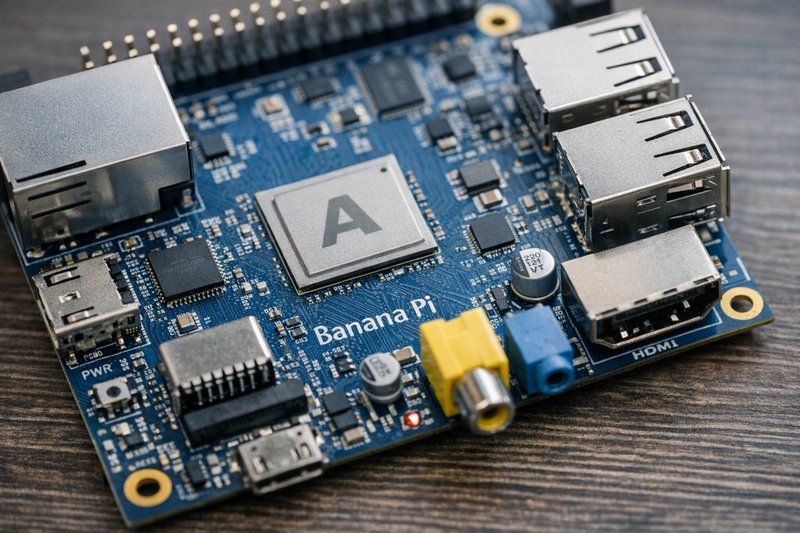
Berryboot Status for Banana Pi
?? Berryboot Not Recommended for A10/A20 Devices
Official guidance: Linux-Sunxi project advises against using Berryboot on A10/A20 boards
Architecture: Banana Pi uses Allwinner A20 (A10 family)
Issues: Compatibility problems with shared kernel approach, difficult recovery if bootloader corrupts
Why not recommended:
- Berryboot's shared kernel doesn't work well with Allwinner A20 hardware variations
- Creates additional failure points compared to standard U-Boot
- Recovery from boot failures is more complex than single-OS setups
- Limited community support for A20-based boards
? Better Multi-Boot Alternatives
Option 1: Multiple SD Cards (Simplest)
Use separate SD cards for different operating systems. Swap cards to switch OS. Most reliable and easiest to troubleshoot.
Option 2: Manual Partition Setup
Create multiple partitions on one SD card, install different OS versions, and configure U-Boot to select boot partition. Requires advanced knowledge but avoids Berryboot complexity.
Option 3: Docker Containers on Armbian
Install Armbian as base OS and run different environments in Docker containers. Modern approach for isolated application testing.
For legacy reference:
- LeMaker Mirror - May contain archived Berryboot files
- Linux-Sunxi Bootable Images - Official guidance on A10/A20 boot options
Step-by-step setup
1. Install Berryboot to storage
Download Berryboot image from official site (berryboot.alexgoldcheidt.com) or LeMaker mirrors:
# Download and verify (if hash provided)
wget https://www.berryboot.alexgoldcheidt.com/berryboot-YYYYMMDD-bananapi.img.zip
unzip berryboot-YYYYMMDD-bananapi.img.zip

# Flash to SD card (replace /dev/sdX)
sudo dd if=berryboot-YYYYMMDD-bananapi.img of=/dev/sdX bs=4M conv=fsync status=progress
sync
2. First boot and initial configuration
- Insert SD card, connect HDMI display, Ethernet cable, keyboard, and power on.
- Berryboot GUI appears after ~20 seconds (longer than standard Linux boot).
- Select storage destination: SD card, USB drive, or iSCSI network storage.
- Configure network settings (DHCP or static IP).
- Berryboot formats data partition and prepares filesystem (takes 1-2 minutes).
3. Add operating systems
From Berryboot menu:
- Click "Add OS" button.
- Select from online list (Raspbian, Ubuntu, OpenELEC, etc.) or "Copy OS from USB stick".
- For Banana Pi, choose images marked "Allwinner A20" or "Banana Pi" compatible.
- Download begins (progress bar shows status). Do not interrupt.
- After download, OS appears in boot menu.
- Repeat to add more operating systems.
4. Configure boot menu
- Default OS: Right-click OS in menu, select "Set as default". Auto-boots after 10 second timeout.
- Edit timeout: Hold Shift during boot to access advanced settings.
- Delete OS: Right-click, "Delete". Frees storage space immediately.
- Clone OS: Right-click, "Clone" to create backup copy before major changes.
5. Verify storage space and health
# After booting into an OS, check Berryboot data partition
df -h | grep berryboot

# Check overall storage health
sudo badblocks -sv /dev/mmcblk0

# View Berryboot logs (if issues occur)
sudo journalctl -b | grep berryboot
Concrete example (backup before changes)
# Save configs and key logs before modifying boot layouts
tar -czf lemaker-backup-$(date +%Y%m%d).tgz /etc /var/log

# Backup entire Berryboot data partition (from another Linux machine)
sudo dd if=/dev/sdX2 of=berryboot-data-backup.img bs=4M status=progress

# Clone OS within Berryboot menu before updates (right-click OS > Clone)
Troubleshooting
Boot menu does not appear; blank screen or kernel panic
- Symptoms: Black screen after power on; cursor blinking but no GUI; kernel panic messages on serial console.
- Steps:
- Connect serial console to capture boot messages. Look for "Kernel panic" or filesystem errors.
- Verify storage integrity: Remove SD card, insert in PC, run
fsckon data partition. - Re-flash Berryboot bootloader: Backup data partition if possible, then re-flash Berryboot image.
- Check HDMI connection and monitor input. Try different HDMI cable/monitor.
- If corrupted, restore from backup or start fresh Berryboot installation.
OS fails to boot; returns to menu or kernel panic
- Symptoms: Select OS from menu, screen goes black, then returns to menu; or system freezes/panics during boot.
- Steps:
- Check if OS image is compatible with Berryboot kernel version. Older OS images may require older Berryboot.
- Try booting different OS from menu. If others work, suspect corrupted image.
- Delete and re-download problematic OS image.
- Check storage space:
df -h. Insufficient space causes overlay filesystem errors. - Examine serial console logs for specific driver or module loading failures.
"No space left on device" errors; cannot add new OS
- Symptoms: OS installation fails partway; applications cannot write files; boot fails with filesystem errors.
- Steps:
- Check available space in Berryboot menu (shows total/used space).
- Delete unused OS images: Right-click > Delete.
- Clean up within booted OS:
sudo apt clean(Debian/Ubuntu), remove old logs. - Consider larger SD card. Berryboot can be migrated to new storage via "Copy OS to USB".
- Use external USB storage for additional OS images (configure in Berryboot advanced settings).
Random corruption; OS boots but files disappear or change
- Symptoms: Configuration changes revert after reboot; files disappear; random application crashes.
- Steps:
- Replace SD card immediately. Failing storage causes silent corruption in overlay filesystem.
- Test new card:
sudo badblocks -wsv /dev/sdXbefore use. - Verify power supply stability. Voltage drops during write operations corrupt Berryboot overlay.
- Avoid improper shutdowns. Always use "Shutdown" from OS or Berryboot menu.
- Restore from known-good backup if corruption is extensive.
FAQ
Can I use Berryboot with any Linux distribution?
Only distributions with Berryboot-compatible images. Not all distros provide Berryboot-formatted images. You can convert standard images using Berryboot tools, but success varies. Check Berryboot forums for compatibility lists.
How much storage overhead does Berryboot add?
Berryboot bootloader uses ~50MB. Each OS image storage overhead: ~10-20% due to SquashFS compression vs raw filesystem. Shared kernel saves space (no duplicate kernels per OS).
Can I dual-boot between Linux and Android with Berryboot?
Rarely successful. Android requires specific kernel and partition layout incompatible with Berryboot's shared-kernel model. Use separate SD cards for Linux and Android instead.
How do I backup my Berryboot configuration?
Clone OS images within Berryboot menu (right-click > Clone) before major changes. For full backup, use dd to image entire SD card from another Linux system. Individual OS filesystems stored in /berryboot/images/.
Why do some OS images boot slower with Berryboot?
SquashFS overlay adds decompression overhead at boot. Slower SD cards exacerbate this. First boot after installation is slowest (generates overlay). Subsequent boots faster once overlay is populated.
Can I update the OS kernel independently from Berryboot?
No. Berryboot uses a shared kernel for all OS images. Kernel updates must come from Berryboot project updates. This limits flexibility but simplifies multi-boot management.
What happens if Berryboot bootloader corrupts?
You lose access to all OS images until bootloader is restored. Keep backup SD card with standard single-OS installation for recovery. Data partition may be mountable from another Linux system to extract files.
Is Berryboot still actively maintained?
Berryboot development slowed significantly after 2016. Community support exists, but official updates rare. For production use, consider standard bootloaders (U-Boot) with manual dual-boot setup for better long-term stability.
External reference
Related guides
Author: LeMaker Documentation Team
Last updated: 2026-01-20